
Click on Posts in the admin panel to find a list of all posts and totes.
You can filter by Date or by Category using the drop-downs at the top of the list.
Click the title to edit a post
Hover over a post and click on Quick edit for a simple interface for editing commonly-changed properties
You can also search through the titles or the content.
If you hover the mouse over a post, a few options will appear.
Edit will take you to the editing page, same as clicking the name
View will take you to the page on the websites
Clicking quick edit will open the menu shown below, allowing you to change some details quickly

Change the status from “Published” to “Draft” to hide the post from the website.
Click on a post’s name or on Edit Post to edit it. This will take you to the editing page, shown below
Important parts have been labeled in red
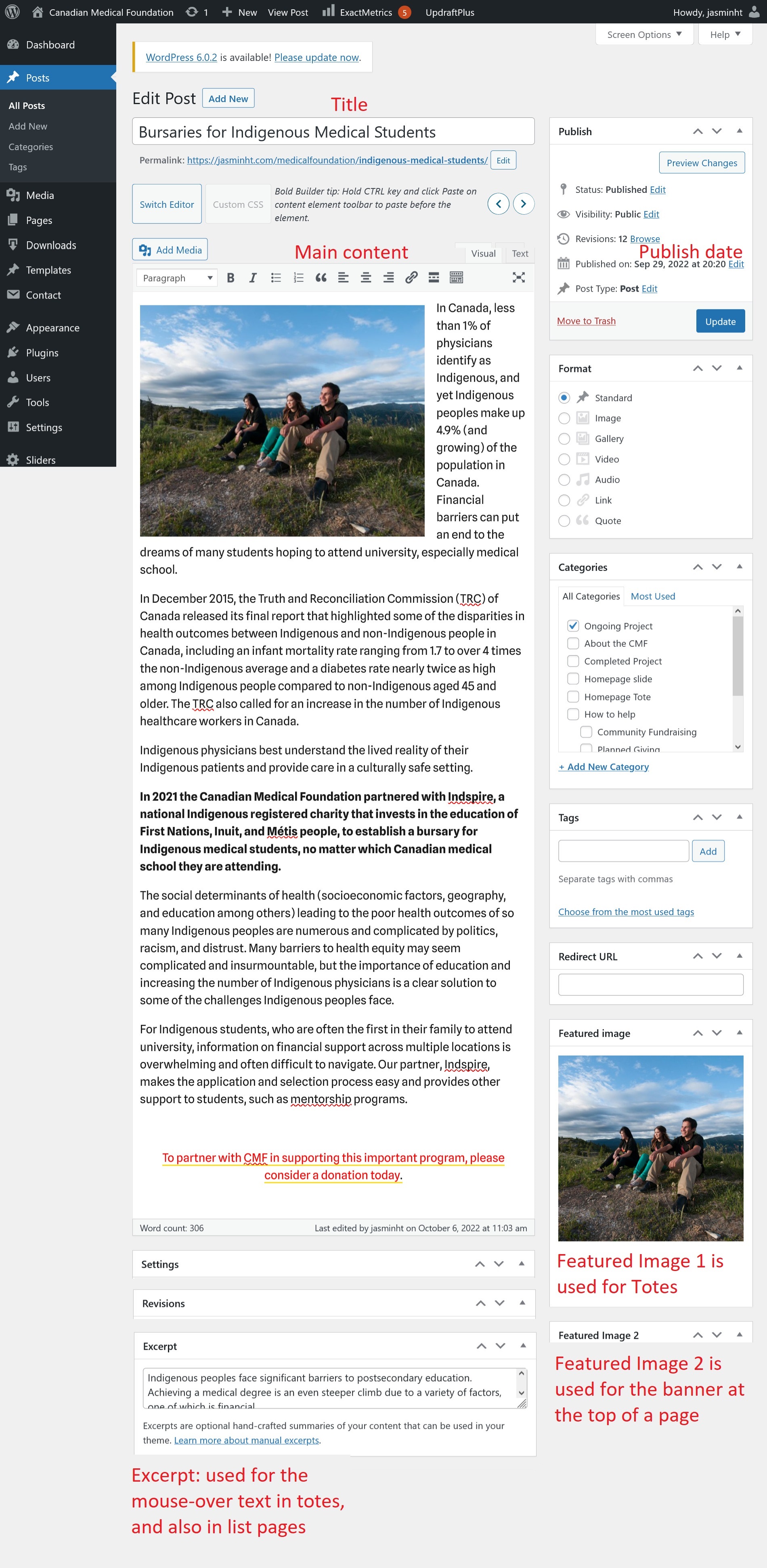
The Featured Image 1 will be used for totes
Tote images should be approximately square, and of at least 600x600 pixels.
Variations are acceptable. Wider images will be automatically trimmed to fit.
The Featured Image 2 will be used for the banner at the top of the page
Page banners should be approximately 1400 by 480 pixels. Variations are acceptable.